
Note: Auto only supports 1K. 1:1 does not support 4K.
Add Grain to Photo with Cinematic Texture
Turn clean digital images into textured, cinematic visuals with visible film grain, stylized noise, and bolder contrast while keeping subjects and key details recognizable.
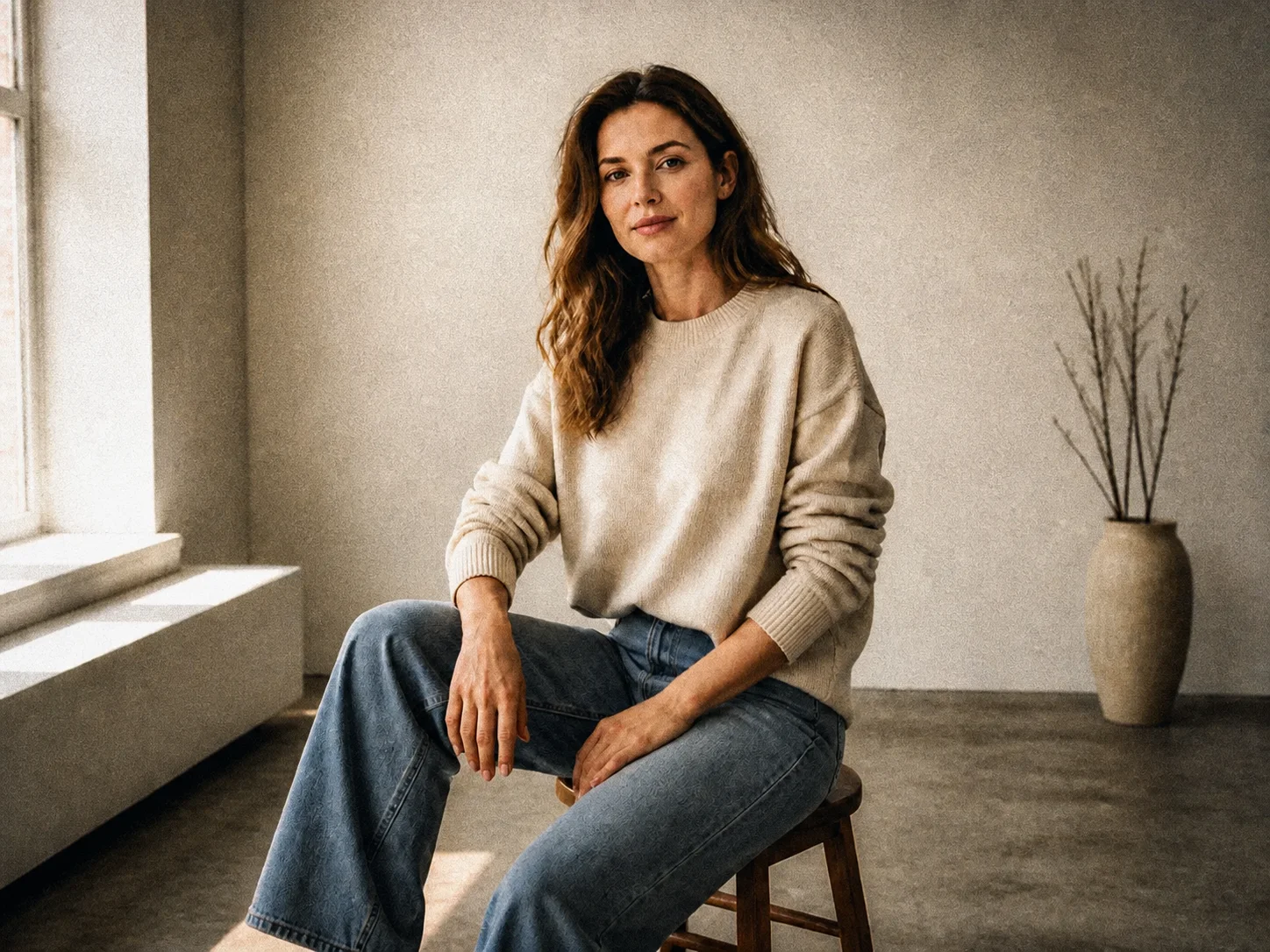

How to Add Grain to a Photo
Upload Your Photo
Choose a clear image with visible subjects and details so the grain treatment can blend naturally across the photo.
Describe the Grain Style
Explain whether you want strong editorial grain, subtle film texture, vintage noise, higher contrast, or another specific visual mood.
Generate and Download
Generate the edited image, review the texture and subject details, then download the result for social posts, portfolios, or creative projects.
Why Add Grain to a Photo with AI?
Add Texture and Depth to Clean Digital Images
Break up overly smooth surfaces with visible grain and textured noise, giving flat digital photos more depth, atmosphere, and photographic character.
Create Cinematic, Vintage, or Editorial Moods
Use film-inspired grain, stronger contrast, and stylized noise to shape anything from nostalgic analog looks to bold editorial visuals.
Keep Important Subject Details Recognizable
Banoo AI applies the requested grain treatment while aiming to retain faces, objects, composition, and other details that define the original photo.
Who Uses Banoo AI?
Everyday Creators
Turn simple ideas into illustrations, social visuals, and trend-inspired images. Edit personal photos with natural-language instructions—no complex editing software required.
Marketing & Business Teams
Create consistent product images, AI characters, ad creatives, and clear infographics. Compare results across multiple AI models, refine layouts, and maintain a consistent marketing visual identity.
Digital Artists
Refine characters, scenes, and visual concepts through multiple iterations. Keep faces, outfits, and art direction consistent for comics, storyboards, short films, and other creative projects.
FAQs About Adding Grain to Photos
Add Grain to Your Photo with AI
Give clean digital photos stronger texture, cinematic contrast, and an expressive film-inspired finish while keeping the original subject recognizable.