
Note: Auto only supports 1K. 1:1 does not support 4K.
Add Motion Blur to Photo
Let the scene flow around your subject. Add smooth background streaks, soft movement trails, and cinematic depth to portraits and action shots without turning the whole frame into a blur.
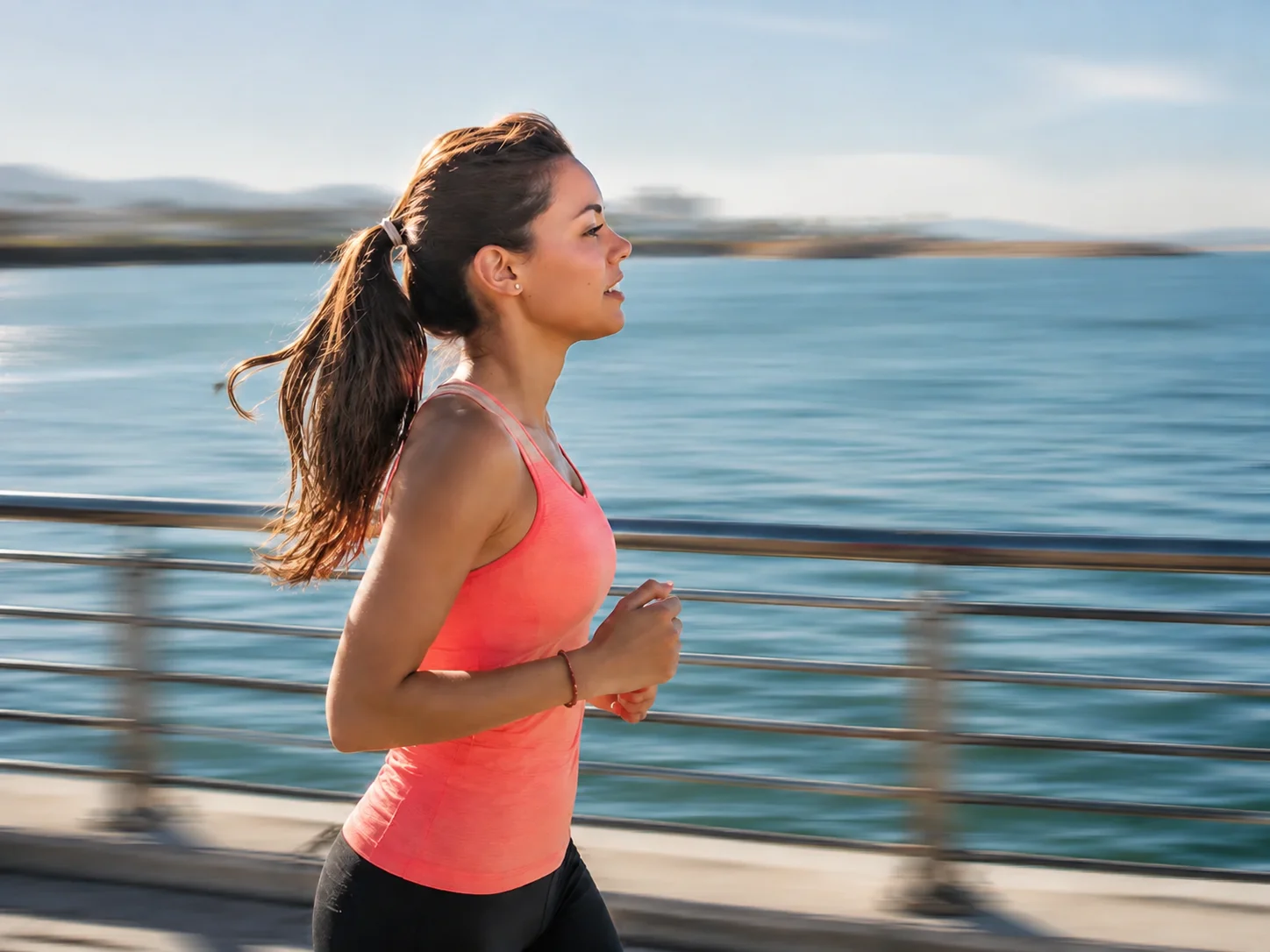
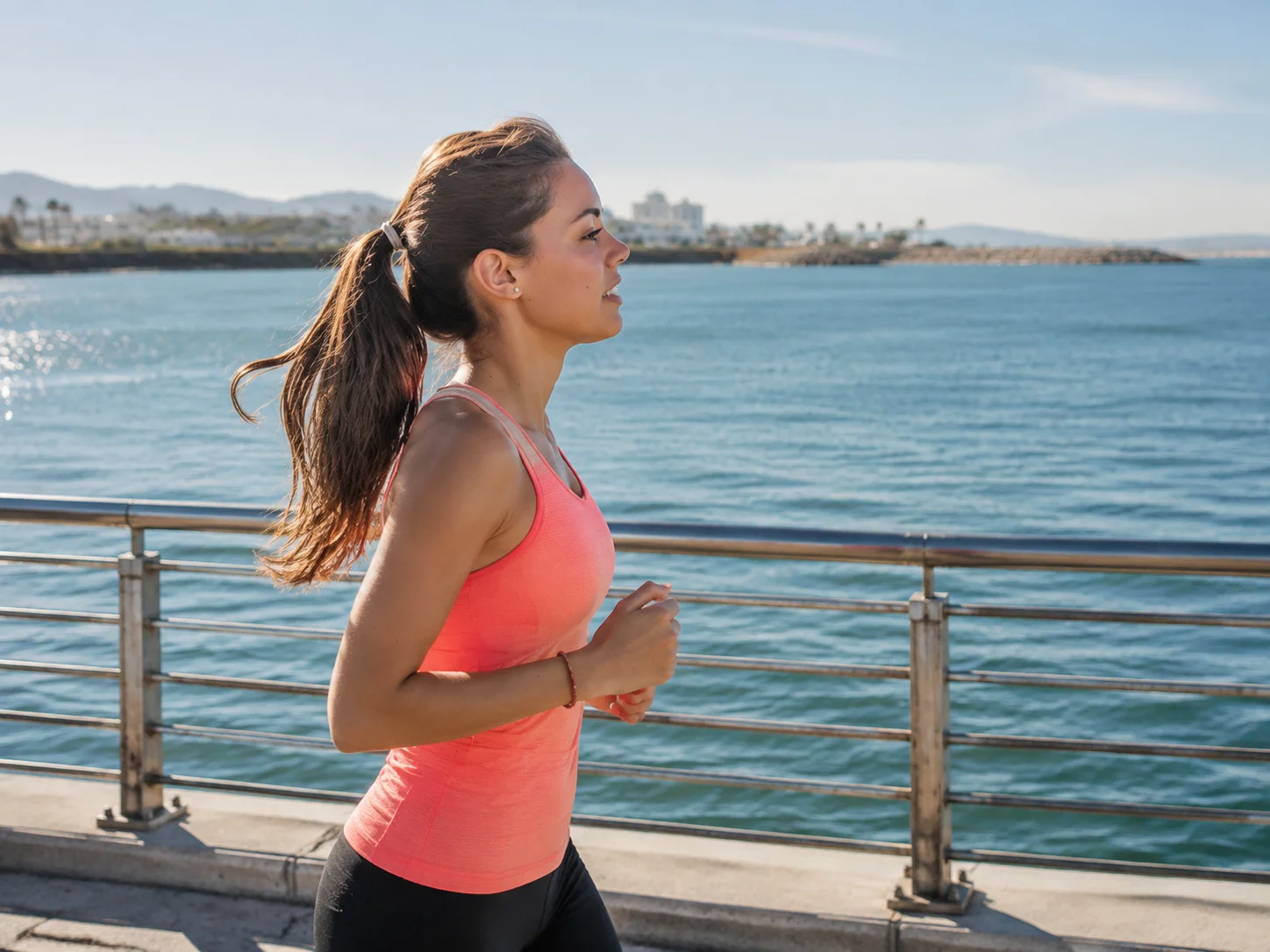
How to Add Motion Blur to a Photo
Start with a Clear Subject
Upload a portrait, street scene, or action photo with a clearly defined subject. Visible background detail gives the motion trails light, color, and texture to work with.
Describe the Movement
Use the starter prompt or describe where the blur should appear. Specify gentle trails, horizontal background movement, or a stronger cinematic sweep, and identify what should stay in focus.
Generate and Review the Trails
Generate your edit and inspect the face, subject edges, and direction of the background streaks. Refine the prompt if the effect feels too strong, then download the version you prefer.
Why Add Motion Blur to Your Photo with Banoo AI?
Put the Motion Around Your Subject
Create a contrast between a recognizable subject and a flowing scene. Direct the blur toward the background while asking the AI to retain facial features and important outlines, so the image suggests movement without losing its focal point.
Shape the Direction and Mood in Words
A soft trail can make a portrait feel atmospheric; longer directional streaks can suggest speed. Describe the flow and intensity you want in the prompt, from an understated editorial look to a more dramatic action scene.
Build Trails from the Scene's Light and Color
Use the colors, lights, and depth already present in the photo as the visual starting point. Motion blur can extend street lights, soften passing scenery, and connect the background into a more cohesive cinematic composition.
Who Uses Banoo AI?
Everyday Creators
Turn simple ideas into illustrations, social visuals, and trend-inspired images. Edit personal photos with natural-language instructions—no complex editing software required.
Marketing & Business Teams
Create consistent product images, AI characters, ad creatives, and clear infographics. Compare results across multiple AI models, refine layouts, and maintain a consistent marketing visual identity.
Digital Artists
Refine characters, scenes, and visual concepts through multiple iterations. Keep faces, outfits, and art direction consistent for comics, storyboards, short films, and other creative projects.
FAQs About Adding Motion Blur to Photos
Give Your Photo a Sense of Motion
Turn a frozen moment into an expressive frame with Banoo AI. Bring flowing backgrounds and soft motion trails to your next portrait or action photo.