
Note: Auto only supports 1K. 1:1 does not support 4K.
Lighten Image with AI
Brighten dark or underexposed photos with this AI image lightener. Recover shadow detail and improve clarity while preserving natural highlights, colors, textures, and skin tones—without washing out the image.
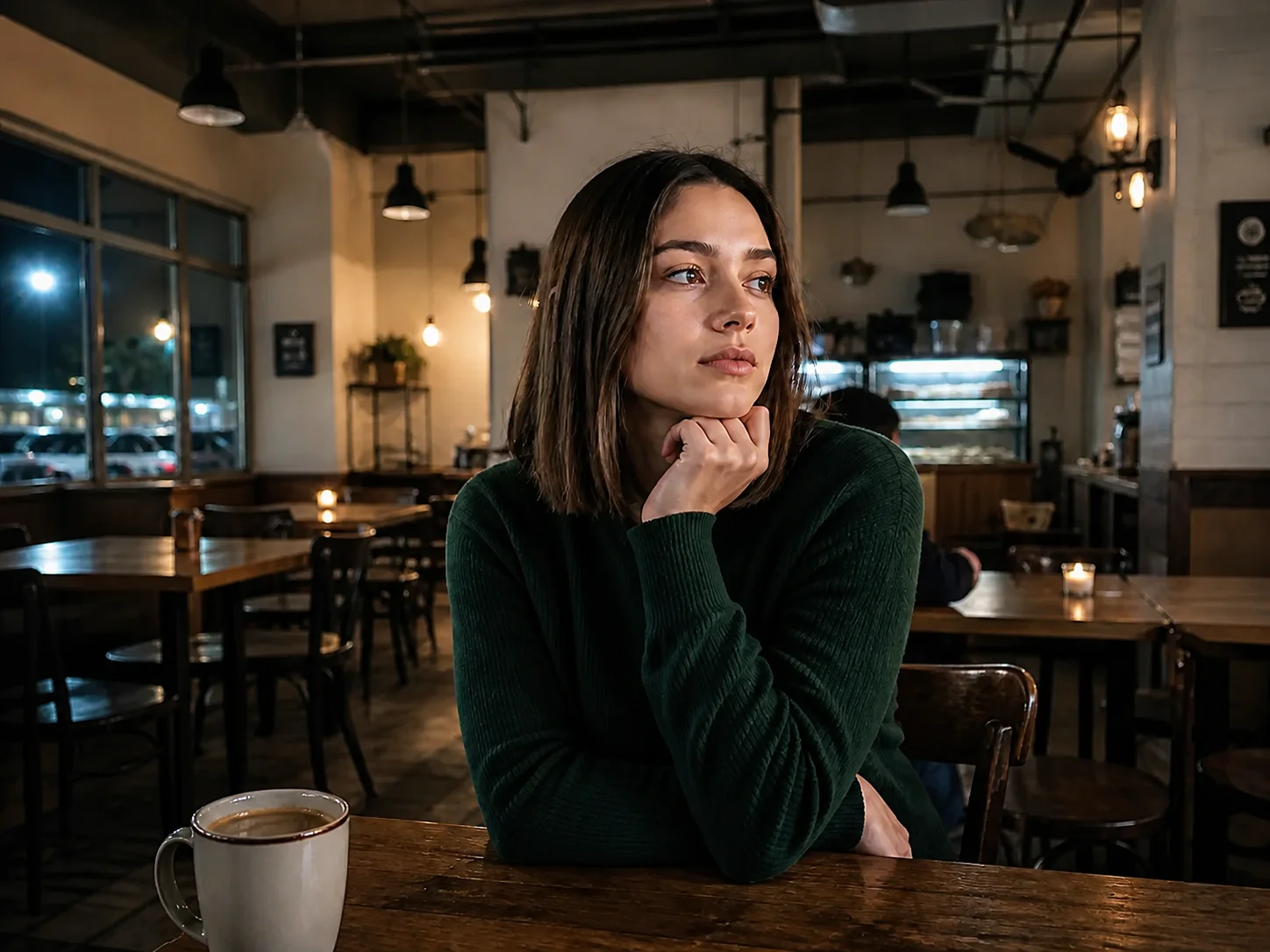
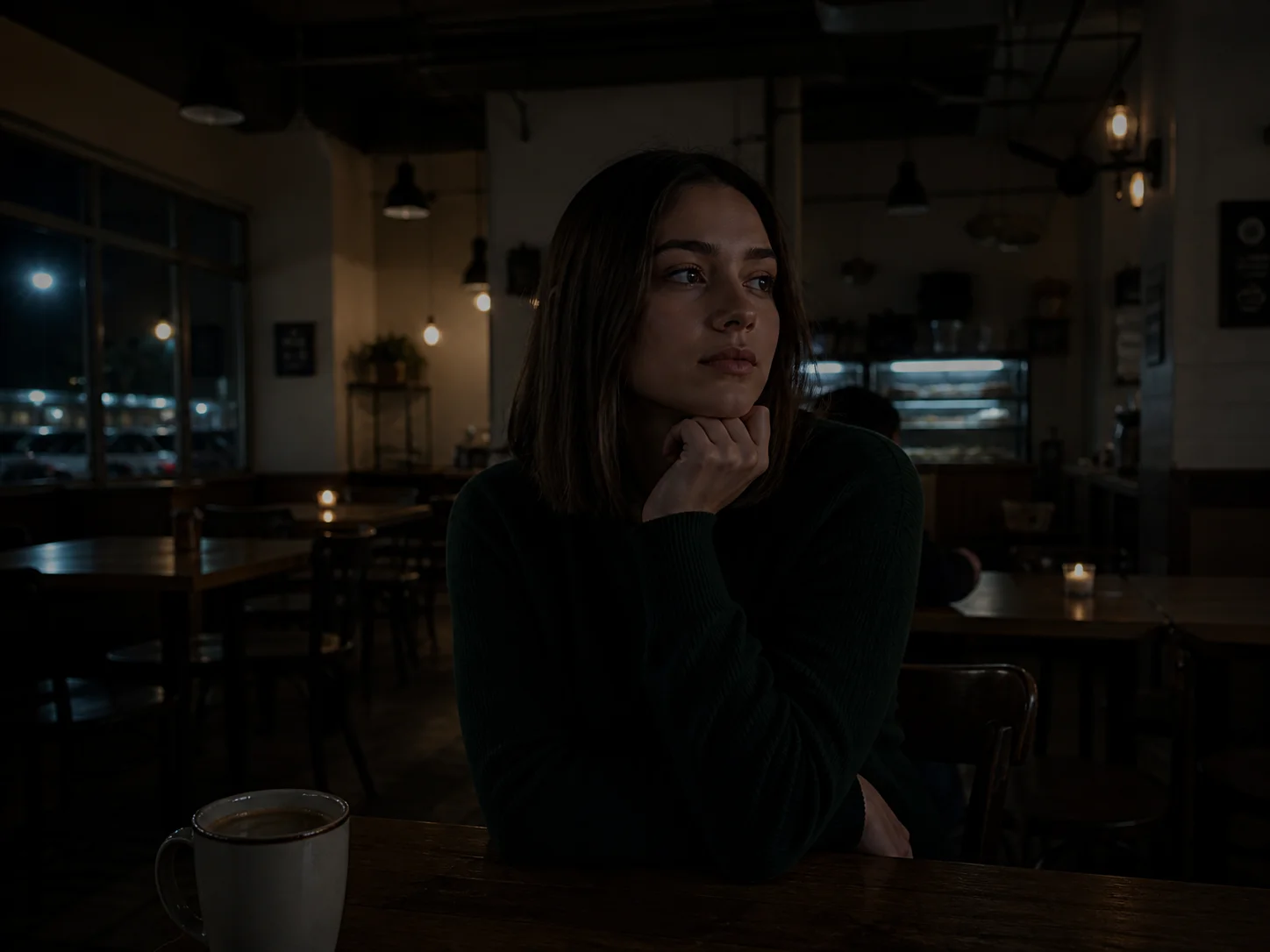
How to Lighten an Image
Upload Your Image
Choose a dark, backlit, or underexposed photo with a clear subject. JPG, PNG, and other supported image formats work well.
Generate the Lighting Fix
Start the image lightener. The lighting instructions guide the model to lift dark regions, protect brighter areas, balance color, and reduce visible noise.
Review and Download
Compare the brightened result with the original. When the exposure, detail, and color look right, download the finished image.
Why Use AI to Lighten Image Photos?
Recover Detail from Deep Shadows
The image lightener analyzes darker regions separately and lifts their exposure so faces, products, and background details become easier to see without flattening the entire scene.
Protect Highlights and Natural Color
Targeted lighting correction helps avoid the washed-out look caused by raising brightness uniformly. Contrast and color balance are adjusted to keep highlights, textures, and skin tones believable.
Clean Up Brightened Low-Light Areas
Increasing shadow exposure can reveal grain that was hidden in the dark. Subtle noise reduction helps produce a cleaner result while retaining useful fine detail.
Who Uses Banoo AI?
Everyday Creators
Turn simple ideas into illustrations, social visuals, and trend-inspired images. Edit personal photos with natural-language instructions—no complex editing software required.
Marketing & Business Teams
Create consistent product images, AI characters, ad creatives, and clear infographics. Compare results across multiple AI models, refine layouts, and maintain a consistent marketing visual identity.
Digital Artists
Refine characters, scenes, and visual concepts through multiple iterations. Keep faces, outfits, and art direction consistent for comics, storyboards, short films, and other creative projects.
FAQs About How to Lighten Image Photos
Lighten Image and Recover Hidden Detail
Use Banoo AI's image lightener to correct dark, underexposed photos with balanced light, cleaner shadows, and natural-looking color.